Product Updates uncategorized

Handling Resident Payments in Money Manager just got Smarter!

Track Collections with Ease on Money Manager

Track Collections with Ease on Money Manager


Treasurers, are you having trouble in reconciling Full/ Partial or Advance payments made by the residents, against various heads? Do you have to do this manually for each payment collected?  Well, not anymore, as with our Money Manager module, handling advance payments can be completely automated. You can simply specify the priority order of the ledgers/ heads against which payment should be marked once and every advance payment will get auto-adjusted accordingly. 

How does this work?

Let’s say your typical Invoice consists of 3 types of charges – Maintenance dues, Water charges and Clubhouse charges – in the monthly/quarterly billing, and the total amount is Rs. 6500. When a residents makes a payment( Say of Rs 3000/- only), you would consider it against which account head? Against the Maintenance dues/ water charges or clubhouse charges? Currently, one had to handle this manually against each payment.

Image-1


With our smart – ‘Auto-Adjustment’ feature, you can just set a priority of ledgers against which the payments should get credited and it will take care of any residents payments made henceforth. To enable this,  you can first set the priority order for these ledgers from Settings> Module Settings> Money Manager> Advanced.
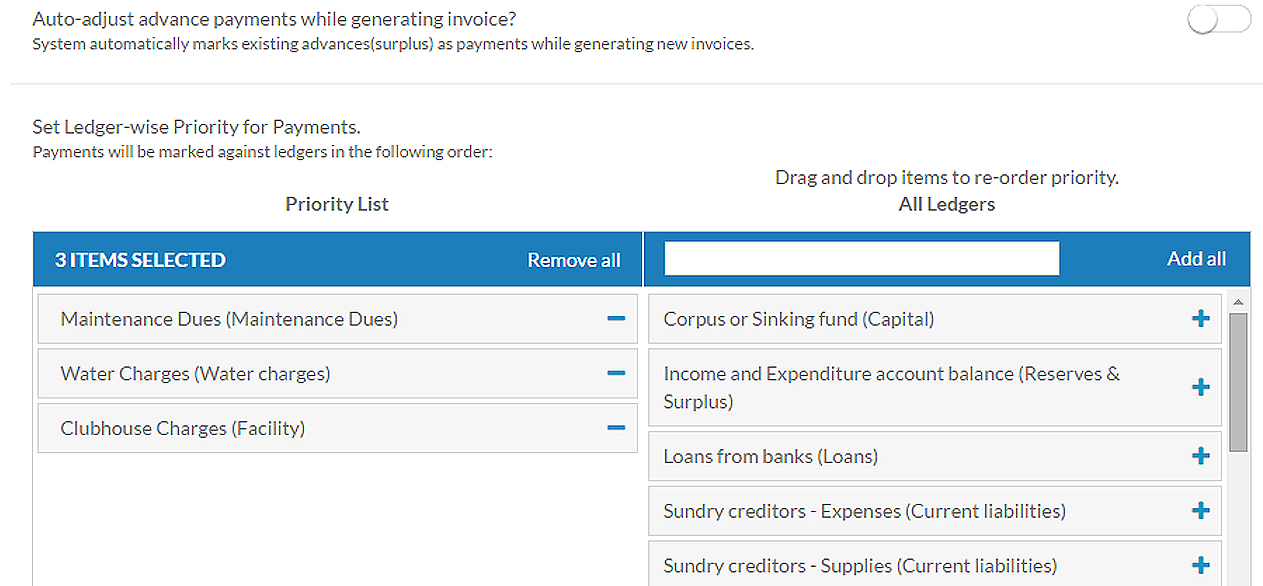
Image-2 copy

The list on the right is the exhaustive list of all ledgers; pick and choose these 3 ledgers to move them to the Priority list. Drag and re-order these items if required to adjust their relative priority. Click on Save and Update settings.

Considering the same example as above, when the Resident makes a Payment of Rs 3000/- against the above mentioned invoice of Rs 6500/- , the paid amount will be marked to the first ledger, i.e. Maintenance charges automatically. You can typically set the priority order based on the applicable penalty or other factors applicable.

The payments can also be verified with a newly introduce report, ‘Ledger-wise Collections’ under the Reports section.
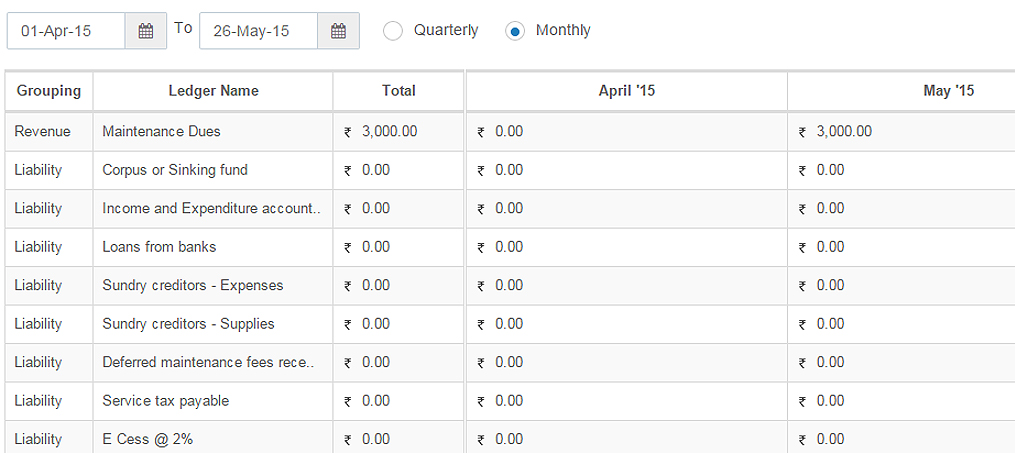
Image-3 copy

As you can see above, the amount of Rs. 3000/- is shown against the Maintenance Dues ledger.

Isn’t that just simple?

Note: This report only shows the payments that are approved by the Treasurer.

Read More
Smart Residential Living uncategorized

​Service Tax increased from 12.36% to 14%​ effective from 1 June

Service_Tax_356x200_5828_356

As per the report (View article), the new Service Tax rate will be 14% effective from 1st June. The current service tax is levied at the rate of 12.36% % including education cess.

To facilitate a smooth transition to levy of tax on services by both the centre and the states… the service tax rate is being increased from 12 per cent plus education cesses to 14 per cent. The education cess and secondary and higher education cess shall be subsumed in the new service tax rate”,

Finance minister Arun Jaitley announced this while presenting the Budget 2015-16. This means eating out in restaurants, air travel, construction, insurance and phone bills will be a tad bit expensive.

How does it affect Housing Communities?

For Housing Communities which have monthly maintenance invoicing, any invoices raised post 31st May, 2015 must have the slab rate of 14% as service tax.

For Housing Communities which have Quarterly, Half yearly or Yearly maintenance billing, for invoices raised post June 1, 2015 will attract 14% service tax. Applicable service tax rate would depend on date of invoice and date of payment.
We highly advise you to consult a Chartered Accountant/Auditor before taking a final view.

How to update Service Tax values for your Group:

STax

Under Settings> Module Settings> Money Manager> Calculations:
Update the value to 14% and click on Save and Update.

Note: If your Group had a service tax setting of 12.36% saved, we’ve updated the same to 14% effective 1st June.

Read More
Right Step Tips uncategorized

5 Measures to Remain Safe During an Earthquake

earthquake-vector

With the recent calamity that hit Nepal and most of Northern India in various degrees it had left many of us shaky and apprehensive. But we really do not have much to do when such an enormous natural calamity hits and resigning to fate is the only thing possible. True, if our houses are earthquake resistant then may be it would help to a great extent. However, the earthquake which hit Nepal was a major catastrophe with it being as high as 7.4 on the Richter scale and in such a calamity many a time earthquake resistant houses might also collapse or suffer great damages. Either way it would be unsafe to be in there. Hence here are a few tips to follow during and after an earthquake.

1. If you are in your homes, offices, malls or any other building do rush out immediately. Often panic can cause stampede and disarray. Being calm in such calamities is paramount.

2. Do turn off electrical appliances and gas connections. The easiest way to do so is simply by switching the mains off.

3. If you are unable to go out in the open then do take shelter under a sturdy table or a sturdy bed. Also cover your face and head with your arms.

4. Also stay away from upright furniture and bookcases. In fact it’s advisable to bolt bookcases to wall studs, installing strong latches on cupboards, and strapping other such things like water purifier etc. to the walls especially if you are living in an earthquake prone zone.

5. Lastly, if you are driving then stop immediately and remain in your car till the shaking stops. But don’t stop under trees, buildings or near walls. However, if you find this to be the case then run out and go into an open space.

Once the earthquake stops don’t think it’s all over and you are safe, as there are chances of being hurt due to the debris around. Also the aftershocks can also cause serious mayhem if not careful.

Well folks, we hope these emergency tips come handy if an earthquake strikes. As it’s said “prevention is better than cure” so be alert and do take all the necessary measures to be safe if you find yourselves in the midst of a natural calamity like an earthquake.
Stay smart, Stay safe!

Read More
uncategorized

Create a Poll and Build a Democratic Apartment Community

Polls on CommonFloor GroupsDemocracy is undoubtedly the secret ingredient necessary to build a happy community. While residents appreciate the tireless hours of hard work that their Managing Committee invests towards the effective and efficient functioning of their community; they would surely want to be heard before anything else.

Thanks to CommonFloor Groups, residents can voice their opinions on various topics and help the Managing Committee reach a consensus. This can be done easily through organizing a poll with a number of options to choose from. On creating a poll, you can configure its settings to allow a resident to select one or more of these options or decide to allow a poll response from only one member from each house.

This granular level of configuration lets you tailor a poll for the appropriate topic and audience.

To quickly learn how to create a Poll, click here.

What’s even more awesome? Now, you can respond to polls from the CommonFloor Groups mobile app. Download the app now.

Polls on Commonfloor Groups App

Read More
uncategorized

Money Manager Multi-level Access

MM Levels

Handling Community Accounting on CommonFloor Groups just got more efficient and awesome! Money Manager now has multiple-level access for Committee members and Staff accounts. You can now restrict the rights of members with access to Money manager as you wish, and ensure a tighter control on your Accounting data.

Under Admin view, click on Committee> Add/ Edit Committee member. You will see the following view:

MM Levels

Here, under Money Manager, a Committee/Staff member can be given any one of 4 levels.

Following is a deeper understanding into what these 4 levels mean.

Level 1

Level 2

Level 3

Level 4

Who could they be?

Committee members who don’t handle Accounting

Staff members who perform basic data-entry transactions

Property/ Estate Managers who handle day-to-day activities of Accounting

Committee member handling Accounting (full access)

Landing page

(list of all entries)

Y

Y

Y

Y

Download/ Print

Y

Y

Y

Y

Add entry

-

Y

Y

Y

Edit entry

-

-

Y

Y

Delete entry

-

-

Y

Y

Modify Settings

-

-

Y

Y

Approve entry

-

-

-

Y

Settle entry

-

-

-

Y

Points to note:

  • These Access permissions are valid for all sub-modules within Money Manager – Income, Expense, Bank and Ledgers.

  • All current Committee members and Staff have been updated to Level 4 (highest access) by default

  • A Staff member with Level 4 access will still NOT be able to Approve Invoices or Payments; this will be restricted only to Committee members with Level 4 access

So, ensure that your Community uses Money manager efficiently and ensure a tighter control on your Accounting data.

What do you think of this new feature? Let us know in your comments below.

Read More
1 56 57 58 59 60 73